

Apparel Module
Apparel Stock by Color and Size
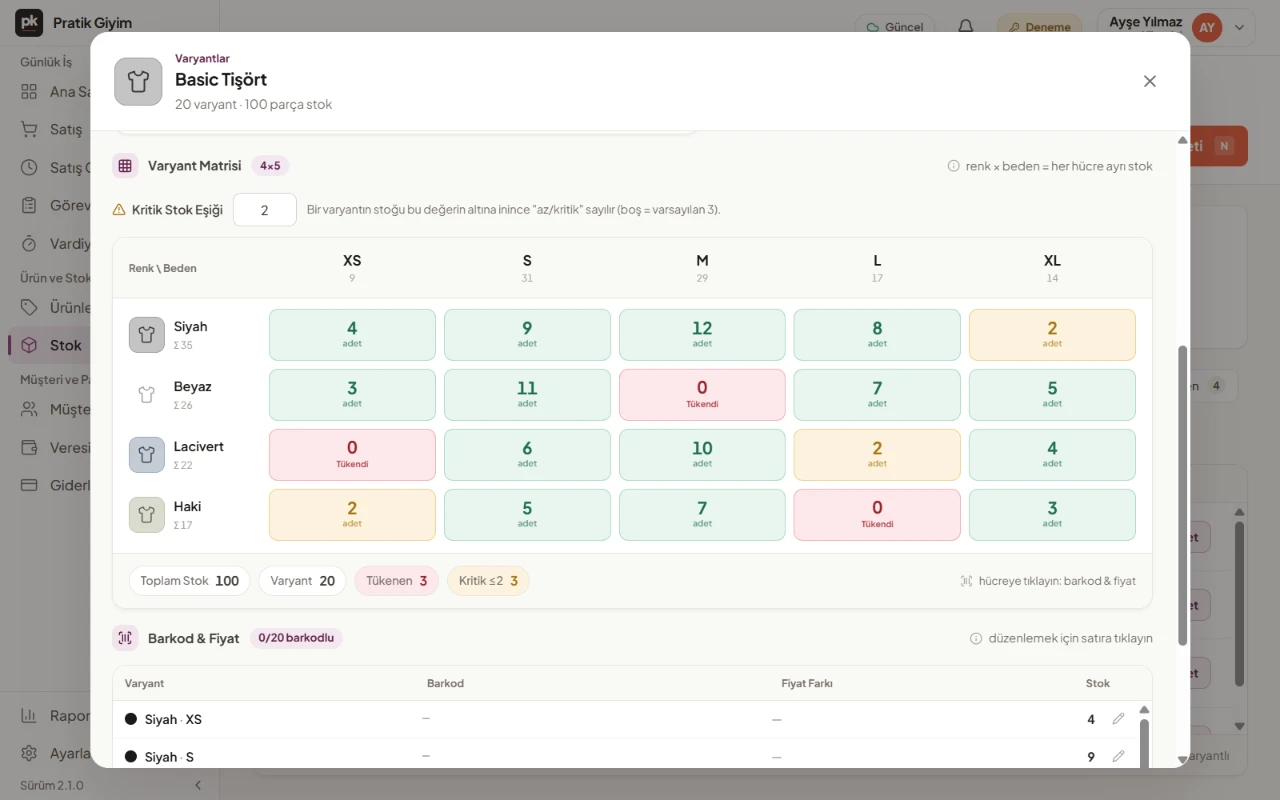
In PratikKasa Apparel, you define a product with its colors and sizes. Each color-size combination is a separate stock. You see in the list which size is running low or sold out. A return is matched to the receipt it was sold on, and the item goes back into stock automatically.
- Windows
- Android
- iPhone and iPad
At a Glance
In Short
Variant
Color × size. Each combination has its own stock and, if you want, its own barcode.
Price
The main price is on the product. If a size costs more or less, you add a «Price Difference».
Alerts
Sizes below the critical level and sold-out sizes are marked in the list.
Returns and Exchanges
Returns are matched to the receipt. A size or color exchange happens in the same cart.
Step by Step
How to Keep Color and Size Stock
- 1
Add the Product With Colors and Sizes
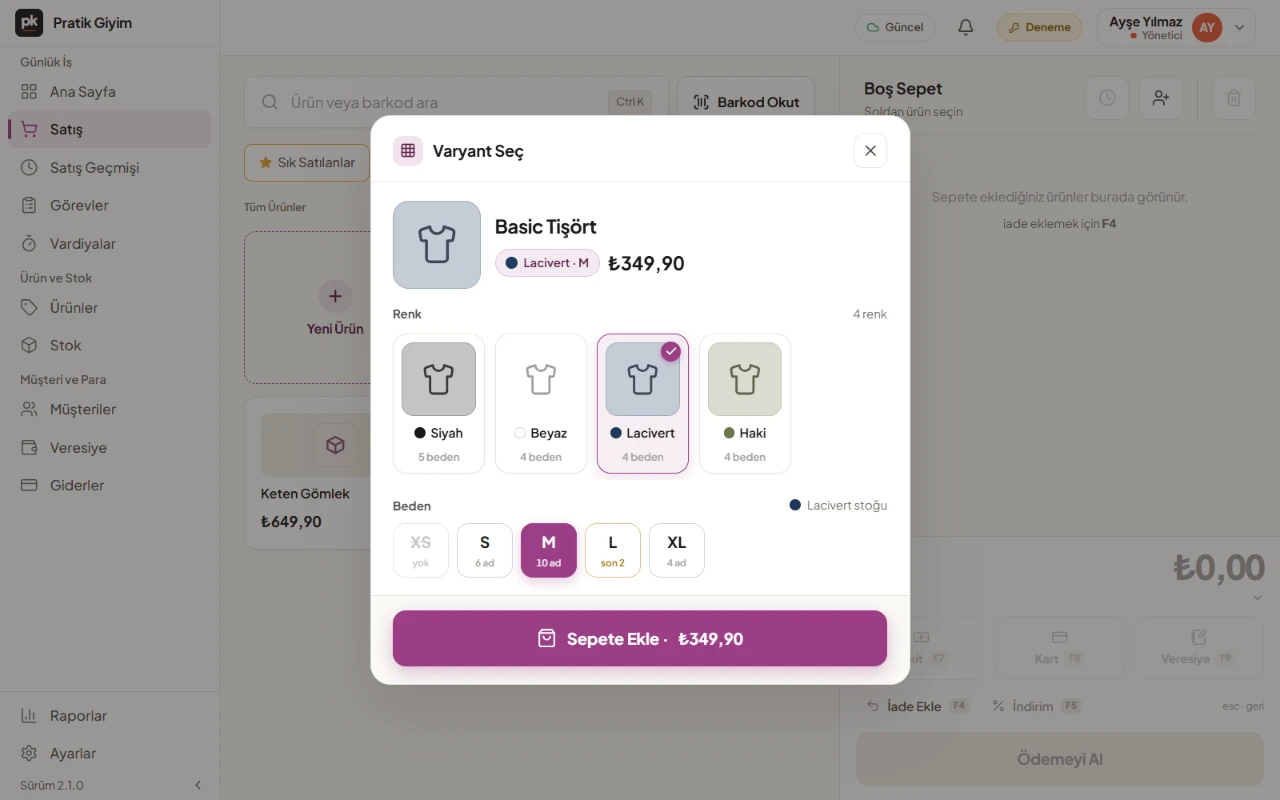
Choose the colors and sizes in the product form. You can add a separate photo for each color.
- 2
Enter the Stock
Type the quantity into each cell of the color × size table. On the phone, you can enter variant barcodes one by one with «Scan in Order».
- 3
Print Labels
Print a label for each color and size with the product name, color, size, barcode and price.
- 4
Sell
When you scan the barcode, the right color and size go into the cart. If that size is out of stock, the sale is not allowed.
- 5
Watch What Runs Low
See critical and sold-out sizes in the stock list. On Windows, Variant Stock Health under Reports › Apparel lists sold-out sizes.
What You Can Do
Made for Apparel
Convert to Variants
Split a product you added without variants into colors and sizes later. Existing stock is spread across sizes; the total stays the same.
Color Photos
Add a separate photo for each color.
Count by Color and Size
Count stock by color and size. On the phone, count by scanning with «Count by Barcode».
Exchange Differences
If an exchange has a price difference, the cart calculates it. If not, the exchange ends without any money changing hands.
Good to Know
- The app does not generate variant barcodes. A variant without a barcode is found by the product's own code at the register.
- Low-stock notifications and the count on the Today screen look at the product's total stock; one size selling out does not create a notification. You follow sizes in the stock list.
- Returns without a receipt are available only in the Windows app, with permission; the amount is added to the customer's store credit.
FAQ
Frequently Asked Questions
Does every size need its own barcode?
No. Barcodes are optional. For a variant without a barcode, find the product at the register and choose its color and size.
Can I split a product I added without variants into sizes later?
Yes. The conversion wizard spreads the existing stock across colors and sizes. This cannot be undone and is not available for products sold by kilogram or liter.
How is a price difference handled in an exchange?
The returned item and the new item go into the same cart. Any difference is collected from or paid to the customer. With no difference, the exchange ends without any money changing hands.
Where do I see which sizes are running low?
Critical and sold-out sizes are marked in the stock list and in the color × size table. The Windows app also has Variant Stock Health under Reports › Apparel.
Which printer prints color and size labels?
Label printers that use TSPL commands. On Windows you print over the network or USB, on the phone over Bluetooth.
Try It Free for 15 Days
Define your products with their colors and sizes. No card required.