
Way of Working
Corporate and Traditional Use
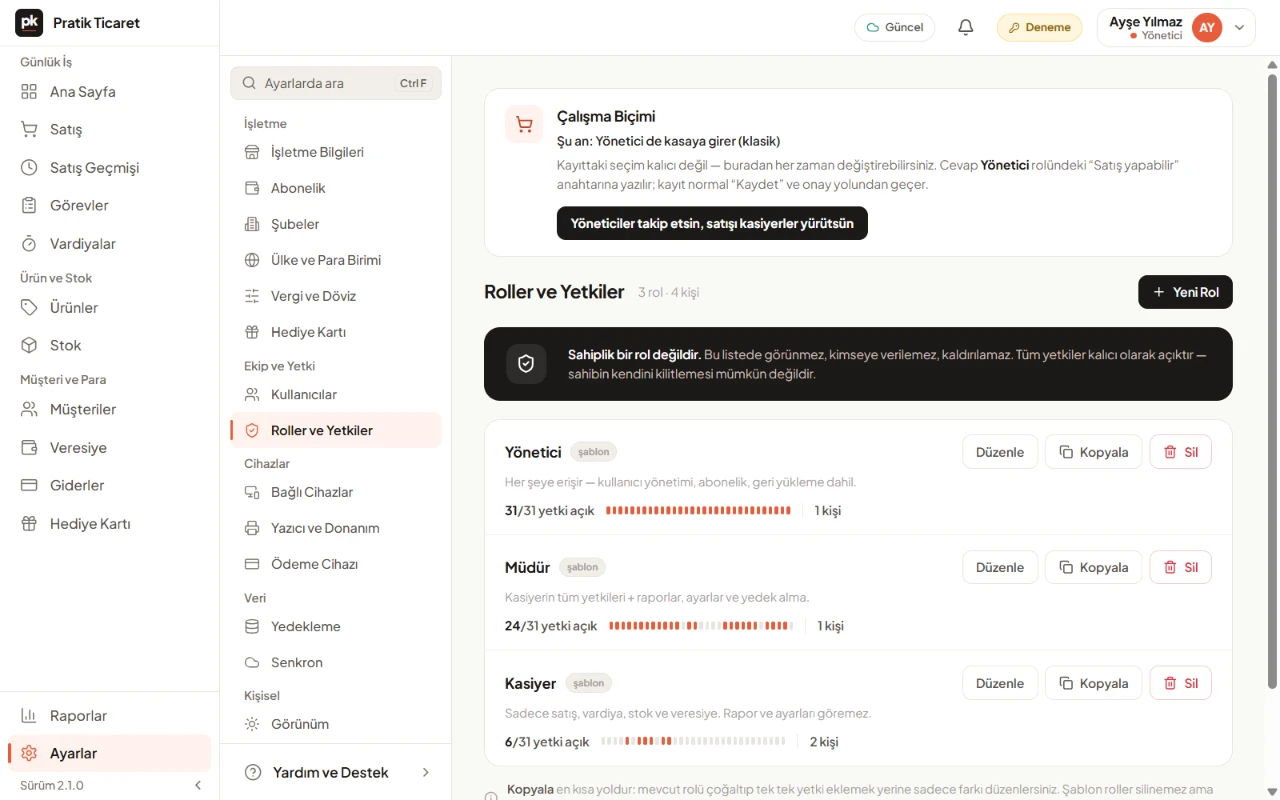
You can use PratikKasa in two ways. In corporate use, managers supervise and cashiers make the sales. In traditional use, the manager also works at the register. Unless you change it, the app works the traditional way. You can switch at any time on the Roles and Permissions screen.
- Windows
- Android
- iPhone and iPad
At a Glance
Two Ways, One App
Corporate
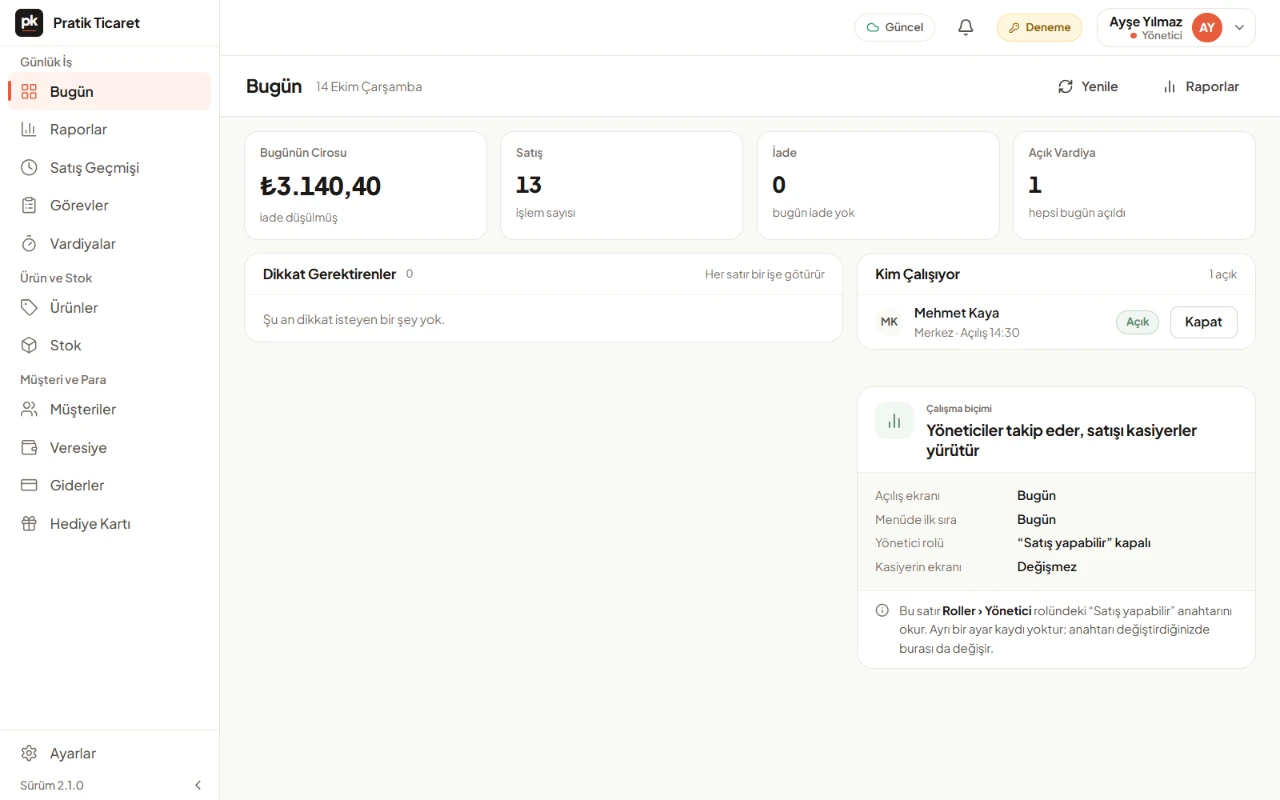
People in the Admin role do not sell. The app opens on the Today and Reports screens for them.
Traditional
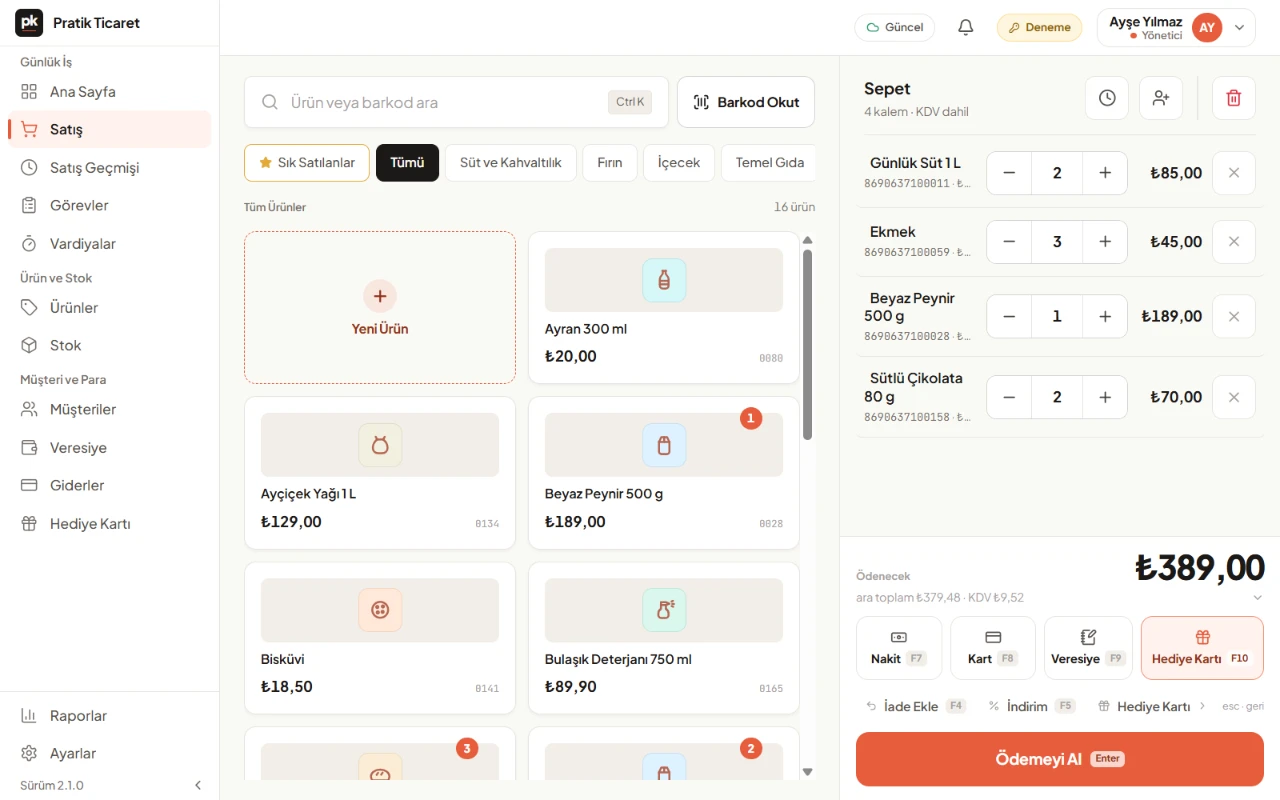
The manager also works at the register. The app opens on the sales screen. Single-person businesses work this way too.
Name in the App
Settings › Roles and Permissions › «Way of Working»: «Managers monitor, cashiers run sales» or «Managers also work the register».
The Cashier's Screen
It is the same either way. The Manager and Cashier roles keep selling.
Step by Step
How to Switch to Corporate Use
- 1
Add Your Team
Add your cashiers and managers as users and give each a role. The «Way of Working» card appears once your team has more than one person.
- 2
Open Roles and Permissions
Find the «Way of Working» card under Settings › Roles and Permissions.
- 3
Choose the Way of Working
Tap «Let Managers Monitor, Cashiers Run Sales».
- 4
Save
The Admin role opens. Tap Save and confirm with your admin password. To switch back, choose «Let Managers Work the Register Too».
What You Can Do
What You Can Do With Roles
Ready-Made Roles
The Admin, Manager and Cashier roles come ready. Copy a role to create your own.
You Choose the Permissions
Decide role by role who can process returns and who can see reports and the amounts in them.
Everyone Signs In as Themselves
Each person signs in with their own username and password and comes back to the register with a 4-digit PIN. The lock screen never shows a list of users.
All Branches in One Report
In a multi-branch business, see reports for all branches together or branch by branch.
Good to Know
- In corporate use, nobody in the Admin role can sell; the person who registered the business is in this role too. If you need to sell, switch back to traditional use.
- The way of working does not change the price. Users and devices are unlimited.
FAQ
Frequently Asked Questions
What is the difference between corporate and traditional use?
In corporate use, people in the Admin role do not sell; they follow the business on the Today and Reports screens. In traditional use, the manager also works at the register. The Manager and Cashier roles sell in both.
Can I change the way of working later?
Yes. Change it in either direction from the Way of Working card under Settings › Roles and Permissions. The change is saved with your admin password.
Do I need the Enterprise plan for corporate use?
No. Both ways of working are included in every plan at no extra cost. The Enterprise plan on the Pricing page is something else: it is offered by quote from 20 branches or for special needs.
How many users can I add?
There is no limit. Users and devices are not counted; the price depends on the number of branches and media storage.
Can cashiers process returns?
You decide. Turn the return permission on or off role by role, or person by person if needed.
Try It Free for 15 Days
Both ways of working are included in every plan. No card required.