

Branches
Stock Transfers Between Branches
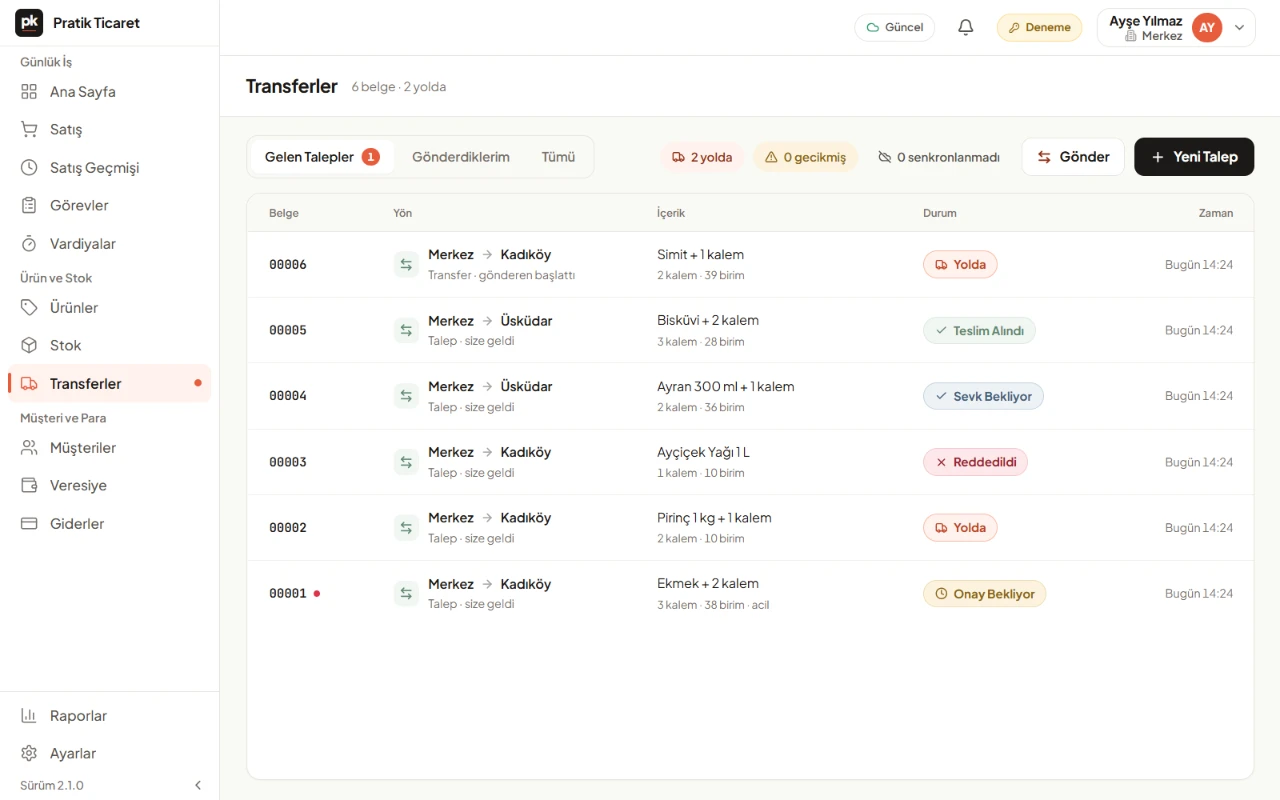
In a multi-branch business, one branch can request products from another or send products to it. When the sending branch dispatches, the products leave its stock. The receiving branch counts what arrives; only the counted quantity enters its stock. If there is a difference, a reason is chosen and stays on the document.
- Windows
- Android
- iPhone and iPad
At a Glance
In Short
Two Ways
Request products from another branch with «New Request». Send products from your branch with «Send».
Statuses
Awaiting approval, approved, in transit, received. Also rejected and cancelled.
Receiving
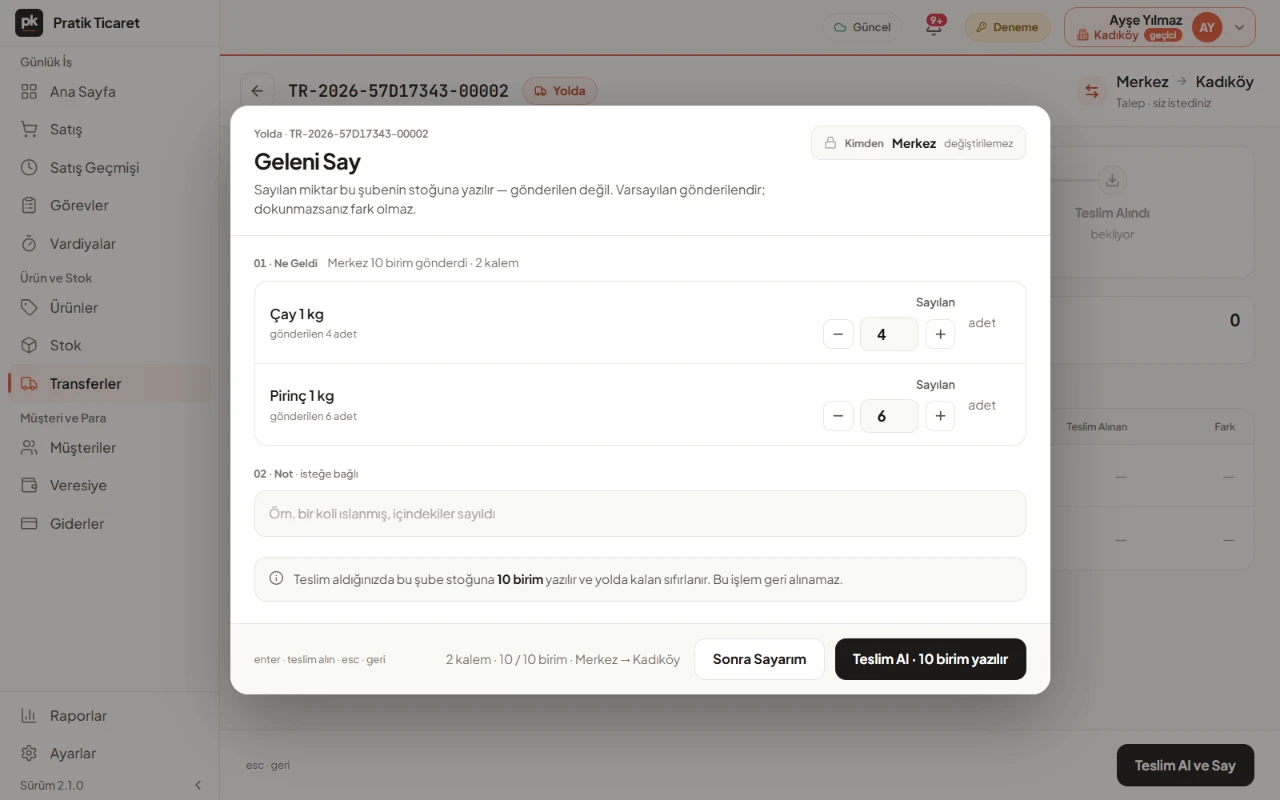
Count what arrives with «Receive and Count». If there is a difference, a reason is required.
Who Sees It
People with the stock management permission, in businesses with at least two branches.
Step by Step
How to Make a Transfer
- 1
Open a Request
Under Transfers, tap «New Request», choose the products and quantities, and send the request. You can mark it as urgent.
- 2
Approve and Dispatch
The sending branch dispatches the request with «Approve and Dispatch». If it can send only part, it approves partly; if it cannot send, it rejects with a reason.
- 3
Receive and Count
The receiving branch counts what arrives with «Receive and Count». The counted quantity enters its stock.
- 4
Explain the Difference
If items arrived short or damaged, choose the reason: Arrived Short, Arrived Damaged or Reason Unknown.
What You Can Do
Direct Sending
Send products with «Send» without waiting for a request; stock goes down right away.
Goods in Transit
Quantities in transit are not counted in any branch's stock. A document in transit for more than two days is marked as delayed.
Scan With the Camera
On the phone, add products to a transfer by scanning them with the camera.
Works Offline
Requests, dispatch and receiving also work offline. The other branch sees the document after sync.
Good to Know
- A dispatched or received document cannot be undone. A request that has not been answered yet can be cancelled by the branch that opened it with «Withdraw Request».
- Receiving happens in one go; a quantity that arrived short cannot be received later.
- The transfer screen appears in businesses with at least two branches.
FAQ
Frequently Asked Questions
Do transfers need the internet?
No. Requests, dispatch and receiving work offline. The other branch sees the document after sync.
What happens if items arrive short?
The receiving branch receives the quantity it counted and chooses the reason for the difference. The difference stays visible on the document.
Who can make transfers?
People with the stock management permission. By default, it is on for the Admin and Manager roles.
Do single-branch businesses see transfers?
No. The transfer screen appears when you open a second branch.
Try It Free for 15 Days
The number of branches depends on your plan. No card required.